PDFill | Overview | First | Previous | Next | Last
PDF Document Management 15: Add a Digital Signature into PDF DocumentNote: A better way is to add a New Digital Signature Form Field, then, sign the digital signature box inside the latest Adobe Reader.
A digital signature (ID), like a conventional handwritten signature, identifies the person signing a document. Unlike a handwritten signature, a digital signature is difficult to forge because it contains encrypted information that is unique to the signer and easily verified. It is usually password protected and can be stored on your computer in PKCS #12 file format (Personal Information Exchange File, PFX).
When you buy a new digital signature, you get .spc file that contains the certificate and .pvk file that contains your private keys. Use Microsoft command-line tool Pvk2Pfx to convert them into a PFX file. See detail here.
The following command generates the .pfx file Mypfxfile.pfx from Mypvkfile.pvk and Myspcfile.spc. The command supplies the password mypassword for the .pvk file, which becomes the password for the .pfx file Mypfxfile.pfx:
pvk2pfx -pvk mypvkfile.pvk -pi mypassword -spc myspcfile.spc -pfx mypfxfile.pfx
This function can create document-level Digital Signature that apply to the entire document.
Here are the steps on how to Add Digital Signature into PDF Document:
1. Choose
Document Menu
>
Digital Signature

or click Digital Signature Button
2. Select a PFX file with digital signature.
3. The Create Digital Signature to Document dialog box comes up:
- Select a File: Select a PFX file with digital signature.
- Enter Password: The password for the digital ID.
- Allow Multiple Signatures: If
checked,the signature and all the other content will be added as a new revision thus not invalidating existing signatures.- Keystore Type: The specified keystore type. pkcs12 is the most common type.
- Keystore Provider: Sets the Cryptographic Service Provider that will sign the document. Leave it empty for pkcs12 type.
- Signed Type: The mode can be Self signed (Adobe.PPKLite) , VeriSign plug-in (VeriSign.PPKVS) and Windows Certificate Security (Adobe.PPKMS).
- Certification Level: The certification level can be
NOT_CERTIFIED,CERTIFIED_NO_CHANGES_ALLOWED,CERTIFIED_FORM_FILLINGandCERTIFIED_FORM_FILLING_AND_ANNOTATIONS.- Reason: Sets the signing reason.
- Location: Sets the signing location.
- Contact: Sets the signing contact.
- Appearance:
- Visible: Sets the signature to be visible on the Position of the selected Page.
- Page Number: Select the page number for the digital signature.
- Appearance: There are 4 Options: Description Only, Signer Name and Description, Signature Image and Description, and Signature Image only.
- Let/Right/Top/Bottom: The position for the digital signature.
- Use Signature Image: Set the signature image if the Appearance option is Signature Image and Description
- Use Background Image: Set the background image. Leave it blank if no background image.
- Background Image Scale: Set the scaling to be applied to the background image.
4. Click Close to finish.
Question 1: The Validity of digital signature is displayed as "UNKNOWN" inside Adobe Reader, how to make "Signature Valid"?
Answer:
1. Click inside the signature with "Validity Unknown";
2. The dialog of "Signature Validity Status" will show up. Click "Signature Properties";
3. From Dialog "Signature Properties", click "Show Signer's Certificate";
4. From Dialog "Certificate Viewer", click "Trust" Tab and then click "Add to Trusted Certificates";
5. "Import Contact Settings" will come up, click OK.
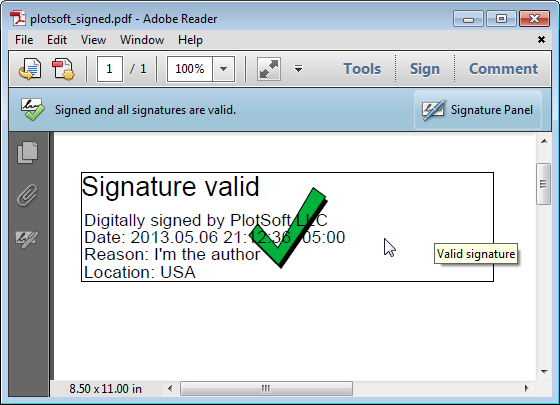
6. Close Adobe Reader and open your PDF again. You will see the "Signature Valid".
Question 2: How to remove the imported digital signature from my computer?
Answer:
1. Open Adobe Reader=>Edit Menu=>Preferences=>Signatures=>Identities & Trusted Certificates=>More;
2. Dialog "Digital ID and Trusted Certificate Settings" comes up, click "Trusted Certificates". Select the Certificate to remove.
3. From "Internet Explorer" => "Tools" Menu =>Internet Options=>Contents=>Certificates=>Select the Certificate to remove.
PDFill Copyright 2002-2022 by PlotSoft L.L.C.. All rights reserved.


